
Using with AI
TINKER can install skill instructions for AI clients such as Cursor and Claude Code, so they learn to open plugins, check status, and call plugin MCP tools from the command line. After installation, the AI follows the skill and runs tinker commands instead of guessing UI steps.
Install the Command Line first.
Installation
Right-click the tray icon and choose Install Agent Skill.... TINKER writes the skill to ~/.agents/skills/tinker/, and installs the CLI as well if it is missing.
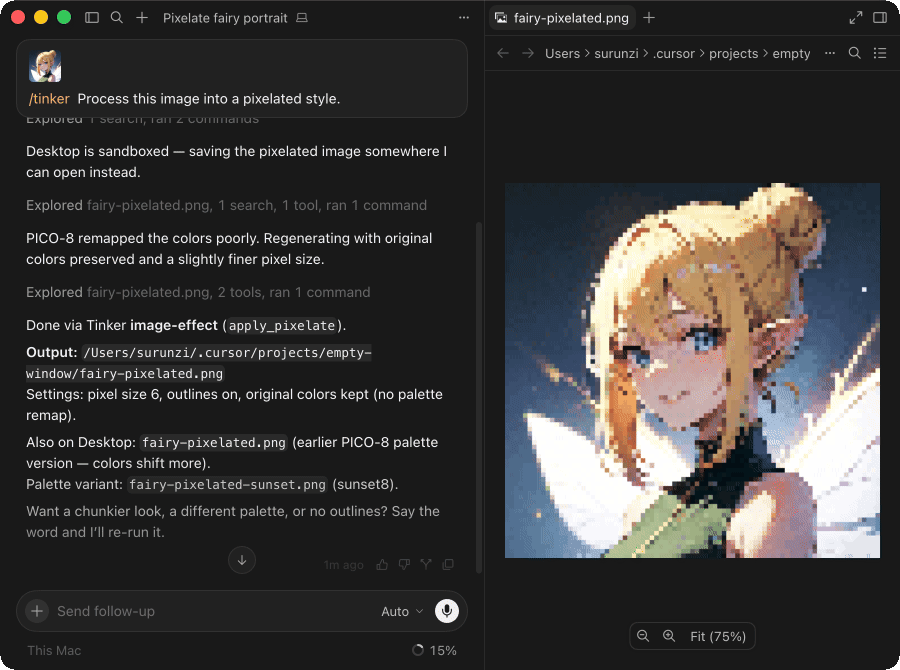
Once installed, clients that support skills can discover tinker. In Cursor, the agent can match the skill automatically from your task, or you can invoke it manually with /tinker in chat.
How it works
A skill is documentation for the AI. After loading it, the client typically lists bundled skills and then reads the guide for the current task:
tinker skills list              # List bundled skills
tinker skills path core         # Core usage: list / open / close / ps, and more
tinker skills path mcp          # Call plugin MCP tools or wire up an MCP client
tinker skills path create       # Scaffold a new plugin from the template
tinker skills path debug        # Debug a plugin UI with CDP and agent-browser
tinker skills path <name> prints the skill directory; the AI then reads SKILL.md inside it and follows the instructions. Everyday requests such as “open a tool” or “use a plugin” usually go through core; load mcp when you need programmatic tool calls.
Common usage
Describe your goal to the AI, for example:
- Open the JSON editor in TINKER
- List installed plugins and open the regexp tester
- Call an MCP-enabled plugin to perform a specific action
The AI should verify that tinker is available, use tinker list when needed, then run commands such as tinker open. If the command is missing or connection fails, revisit Command Line and confirm TINKER can start normally.