
tinker-file-explorer
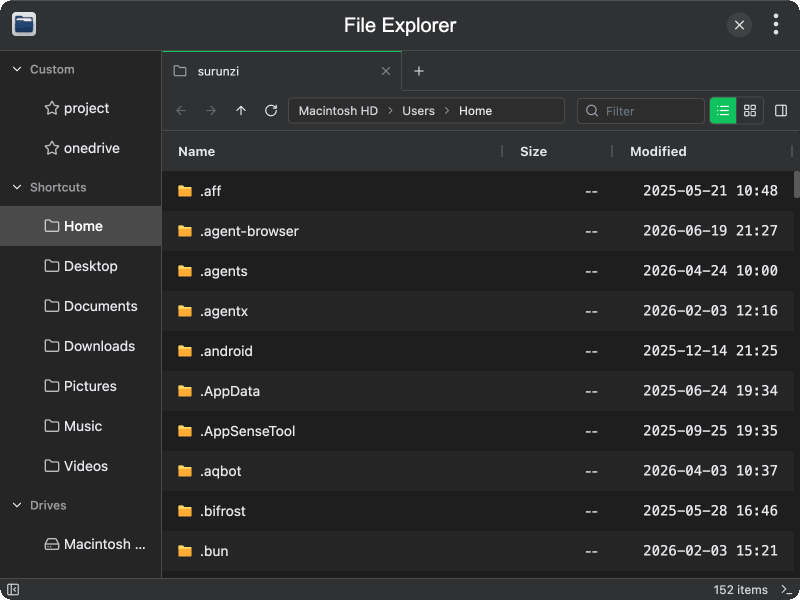
A file manager plugin for TINKER that provides a full-featured file browser with sidebar navigation, multi-tab support, clipboard operations, and integrated terminal access.
Features
- Sidebar navigation — shortcuts to Home, Desktop, Documents, Downloads, Pictures, Music, Videos, detected drives, and custom locations
- Multi-tab browsing — open multiple directories in tabs, reorder tabs via drag and drop
- Back/Forward/Up navigation — browser-like history for seamless directory traversal
- List and grid views — switch between detailed list view and icon grid view
- Path breadcrumb — clickable path segments with an editable path input bar
- Real-time filter — filter files by name with visible/total count display
- Sorting — sort by name, size, or modification time in ascending or descending order
- File operations — create new folders, rename, delete (move to trash)
- Clipboard operations — copy/cut files and paste into another directory within the app
- Multi-selection — Ctrl/Cmd+click for individual selection, Shift+click for range selection, select all
- Context menu — right-click files for show in file manager, open in terminal, copy, cut, rename, delete; right-click blank area for paste, new folder, sort options
- File preview — toggleable preview panel for selected files
- Integrated terminal — open any directory directly in the built-in terminal
- Custom locations — add, edit, and remove your own favorite folders in the sidebar
- Auto-refreshing drives — periodically detects mounted volumes across macOS, Windows, and Linux
Usage
- Open "File Explorer" from the TINKER plugin menu
- Navigate using the sidebar (shortcuts, drives, and custom locations) or the toolbar (back, forward, up, refresh)
- Double-click a folder to enter it, or double-click a file to open it with the default application
- Use the view toggle to switch between list view and grid view
- Filter files by typing in the search box — press
Fto focus the filter - Right-click on files or blank areas for context menu operations
- Use Ctrl/Cmd+C to copy and Ctrl/Cmd+V to paste files within the file explorer
- Click the preview button to toggle the file preview panel on the right
- Click "Open in Integrated Terminal" from the context menu to open a terminal at the current path
- Right-click the "Custom" section in the sidebar to add your own frequently used folders